Single Sign-On
Cybrium supports per-tenant Single Sign-On via OIDC (Okta, Auth0, Google Workspace, Keycloak, Entra ID) and SAML 2.0 (ADFS, PingFederate, enterprise IdPs). Once configured, users authenticate through your identity provider and Cybrium accounts are provisioned on first sign-in — no email invite needed.
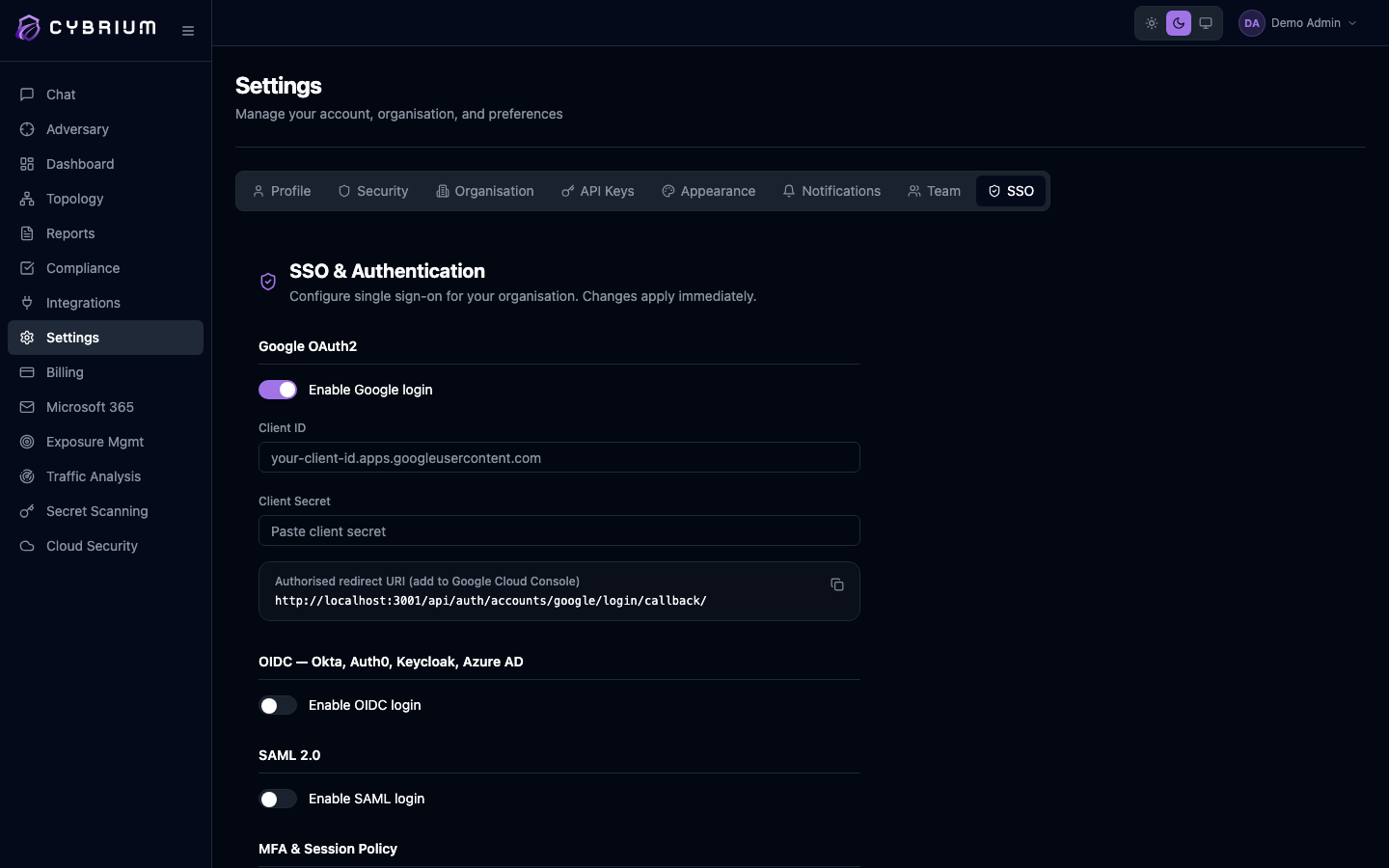
SSO is available on Pro and Enterprise plans. SAML 2.0 is Enterprise-only; Pro customers get OIDC.
Only Owners and Admins can configure SSO. A misconfigured SSO connection can lock your workspace, so Cybrium keeps password sign-in available for admin break-glass.
Before you start
Collect the following from your IdP admin console:
- OIDC: the discovery URL (usually ends in
/.well-known/openid-configuration), client ID, and client secret. - SAML: your IdP's metadata XML URL or file, along with the expected name-ID format.
Configure OIDC
- Navigate to Settings → SSO and select the OIDC tab.
- Paste the discovery URL — Cybrium validates it and auto-populates the token, authorisation, and JWKS endpoints.
- Paste the client ID and client secret you registered with your IdP.
- Copy the Redirect URI Cybrium displays and register it with your IdP.
- Map your IdP role claim to Cybrium's
owner,admin,member, orviewerroles, or leave all new users as Member. - Toggle Enable for this tenant and save.
Configure SAML

- Open the SAML tab and upload your IdP metadata XML, or paste its URL.
- Copy Cybrium's SP Entity ID and ACS URL and register them with your IdP.
- Map the attributes —
email(required),first_name,last_name, and your role claim. - Enable and save.
Test the connection
Use the Test SSO button at the bottom of either tab to run a live round-trip against your IdP. A green check confirms end-to-end flow; any error messages are shown inline with the offending claim highlighted.
After enabling, your sign-in page gains a Sign in with SSO button. Email/password sign-in remains available for admins until you explicitly disable it.