Create your account
Getting started with Cybrium takes less than five minutes. You pick a plan, create a workspace, complete payment, and land in a fully provisioned tenant ready for its first scan.
1. Choose a plan
Open the Pricing page from the marketing site or the sign-in screen. Three public plans are available — Starter ($49/mo), Pro ($199/mo), and Enterprise ($999/mo) — plus a Custom bespoke tier for larger rollouts. Toggle between monthly and annual billing; annual pricing bundles two months free.
Each plan card lists target limits, available scan capabilities, retention window, and support tier. Pick the plan that matches how many assets you need to cover and whether you require SSO, API access, or white-labelling.
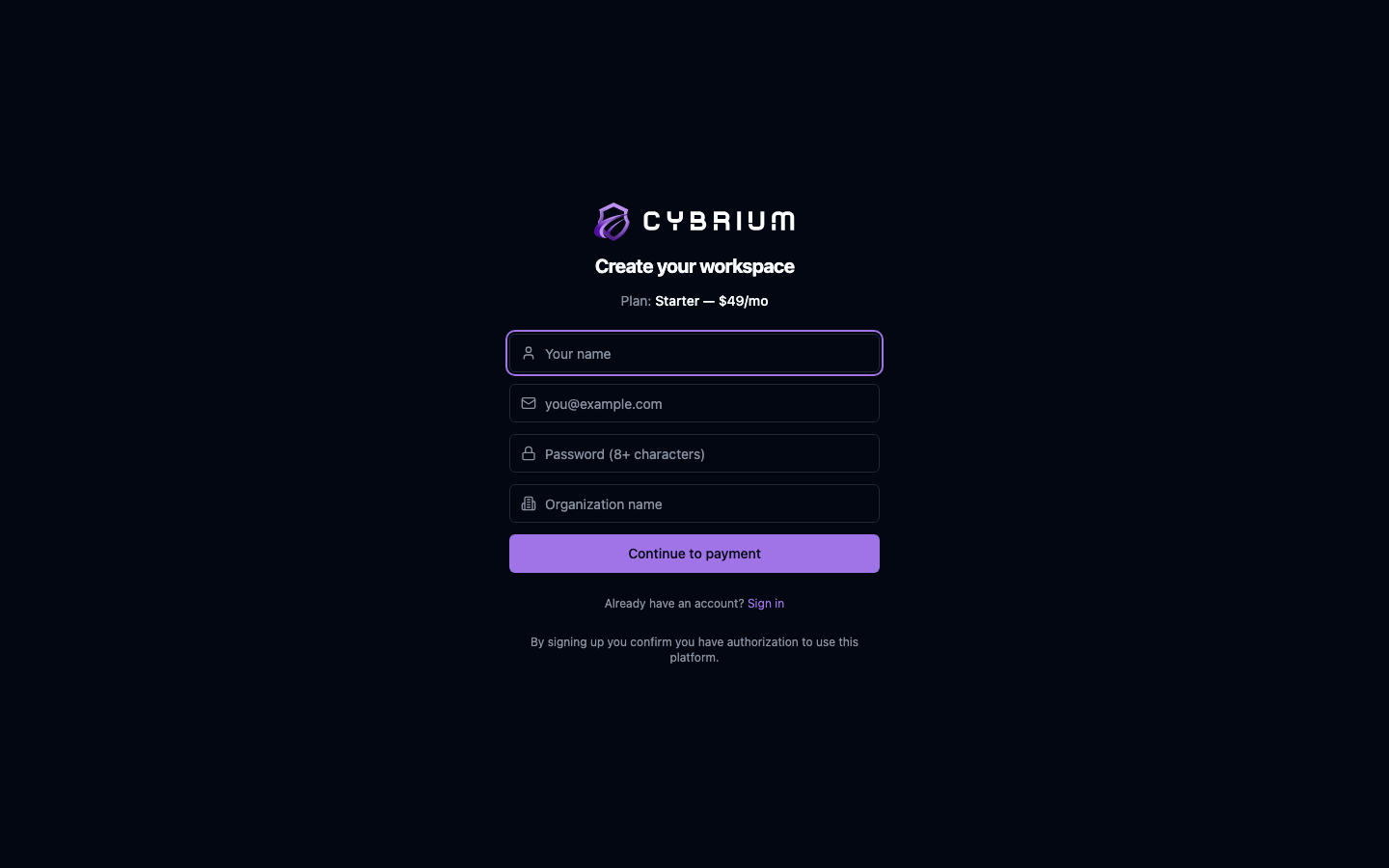
2. Register your workspace
Clicking Get Started takes you to the signup form with your chosen plan pre-selected. You'll be asked for four things:
- Your full name.
- A work email address — this becomes your login.
- A password of at least eight characters.
- An organisation name — this becomes your tenant identifier.

By submitting, you confirm you have authorisation to run security testing through the platform. The form validates inputs locally before any request is sent.
3. Complete payment
Cybrium redirects you to Stripe Checkout to collect card details. Enterprise customers can instead reach out to sales for invoicing. Stripe handles all card data directly — Cybrium never sees the PAN.
SSO, API access, on-prem agents, and white-labelling are enabled automatically based on the plan you purchase. You can upgrade at any time from Settings → Billing.
4. Workspace provisioning
After a successful payment Cybrium redirects you to the Workspace ready page, which polls the backend until your tenant schema is provisioned. This typically takes less than 30 seconds. Once complete, you're redirected straight into the chat workspace.
If provisioning runs longer than a minute you'll receive a welcome email when the tenant is live, and you can sign in at any time.