Multi-Factor Authentication
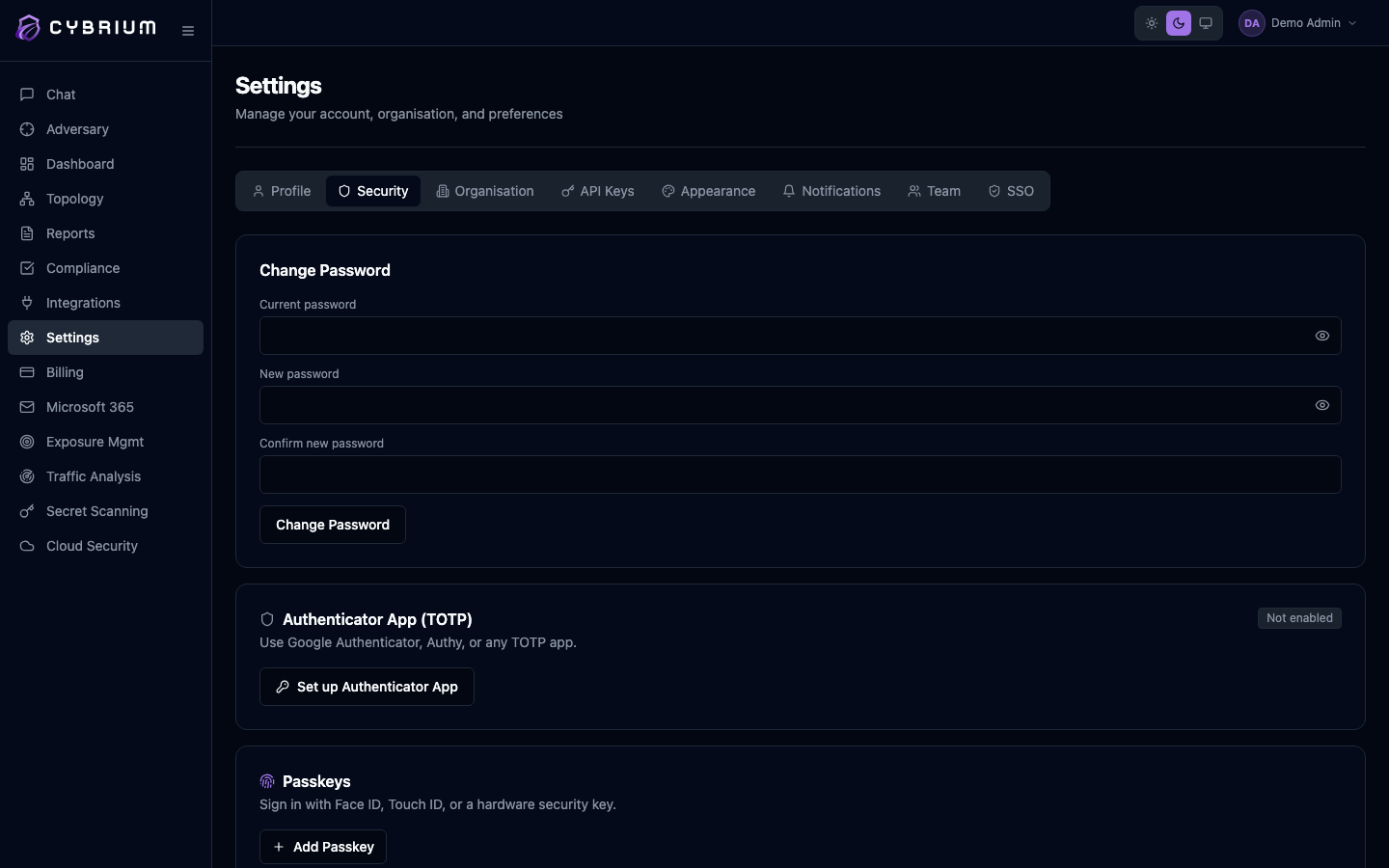
Cybrium supports two strong second factors — authenticator apps (TOTP) and passkeys (WebAuthn) — plus single-use recovery codes for when you lose access to both. All three are managed from Settings → Security.
Why enable MFA
Password-only accounts are the single most common initial-access vector for tenant compromise. Cybrium strongly recommends every user enable at least one second factor, and Owners can make MFA mandatory for the entire organisation from the Security tab.
Authenticator app (TOTP)
- Open Settings → Security and click Add authenticator app.
- Cybrium shows a QR code. Scan it with Google Authenticator, 1Password, Authy, Duo, or any RFC 6238-compatible app.
- Enter the six-digit code your app displays. Cybrium verifies the code and confirms enrolment.
- You're given ten single-use recovery codes. Download, print, or store them in your password manager.
From the next sign-in onwards you'll be prompted for a fresh TOTP code after entering your password.
Passkeys (WebAuthn)
Passkeys replace the password entirely with a device-bound credential — Face ID, Touch ID, Windows Hello, or a hardware security key such as YubiKey.

- Click Add passkey. Cybrium calls your browser's WebAuthn API.
- Follow the system prompt to authenticate with biometrics or your security key.
- Give the passkey a friendly name (e.g., "MacBook Pro Touch ID") so you can identify it later.
You can register multiple passkeys — one per device is typical. Remove any passkey from the list if the device is lost or rotated.
Recovery codes
Regenerating recovery codes invalidates every previously issued code. Keep the new set somewhere offline.
If you lose access to both your authenticator app and every registered passkey, a recovery code is the only way back in. Each code is single-use and ten are issued at a time. You can regenerate the set from Security → Recovery codes at any time.
Enforce MFA org-wide
Owners can toggle Require MFA for all members at the bottom of the Security tab. With the policy on, users without MFA see a banner on every page and are blocked from starting a scan until they enrol.