Invite your team
Cybrium is built for teams. You can add members one at a time, bulk-import from CSV, create accounts directly with a temporary password, or delegate provisioning entirely to your identity provider.
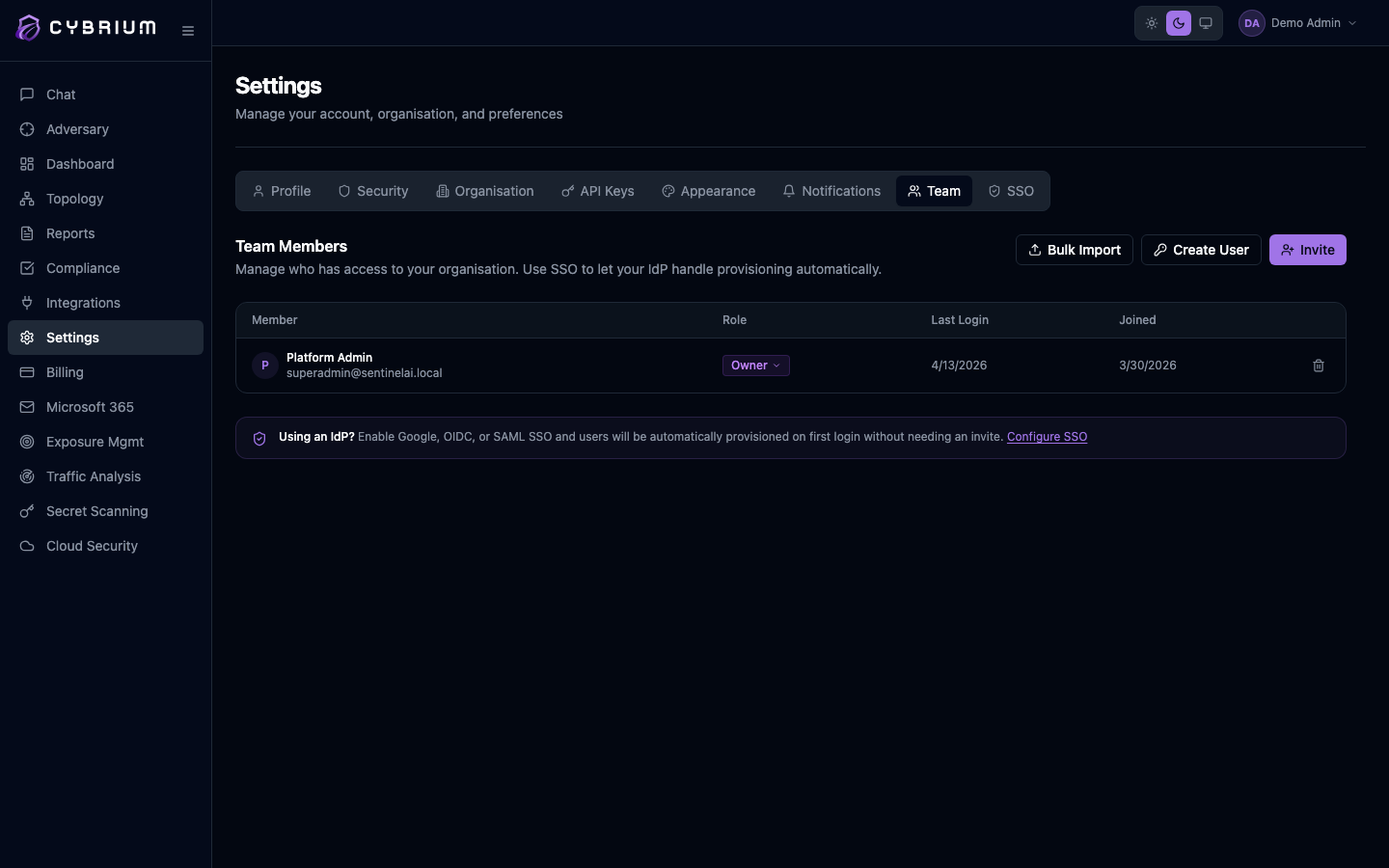
Open the Team tab
Navigate to Settings → Team. You'll see every active member, their role, last login, join date, and any pending invites with expiry dates.
Only users with the Owner or Admin role can see the Team tab. Members and Viewers see a friendly "admin required" message instead.
Invite by email
Click Invite, paste one or more email addresses (one per line or comma-separated), and pick the role you want to assign. Cybrium sends each invitee a tokenised link that expires after the configured window — typically seven days.
Available roles:
- Owner — full control, including billing and deletion of the workspace.
- Admin — manage team, settings, integrations, and all scans.
- Billing Admin — manage billing and plan, no operational permissions.
- Member — launch scans, view findings, create reports.
- Viewer — read-only access to findings and reports.

Bulk import or create directly
For onboarding a larger group, use Bulk Import to upload a CSV with email, first_name, last_name, and role columns. You can either send invites or create accounts directly — the latter mints a temporary password that you hand to the user securely.
Create User achieves the same for a single account when email delivery is unreliable.
What the invitee sees
Clicking the invite link opens a five-step wizard:
- Welcome — confirms the org name and inviter.
- Terms — scroll-to-accept the acceptable-use policy.
- Password — set a password with live strength scoring.
- MFA — choose an authenticator app or register a passkey.
- Done — redirect into the workspace.
SSO-provisioned members
If your organisation has OIDC or SAML SSO configured, new users authenticate through your IdP and a Cybrium account is minted automatically on first login — no invite required. See Settings → SSO to configure this.