Launching a Campaign
A campaign moves from idea to live execution in three steps. The wizard is deliberately linear — you cannot skip forward, and you cannot launch without a valid authorization signature on file.
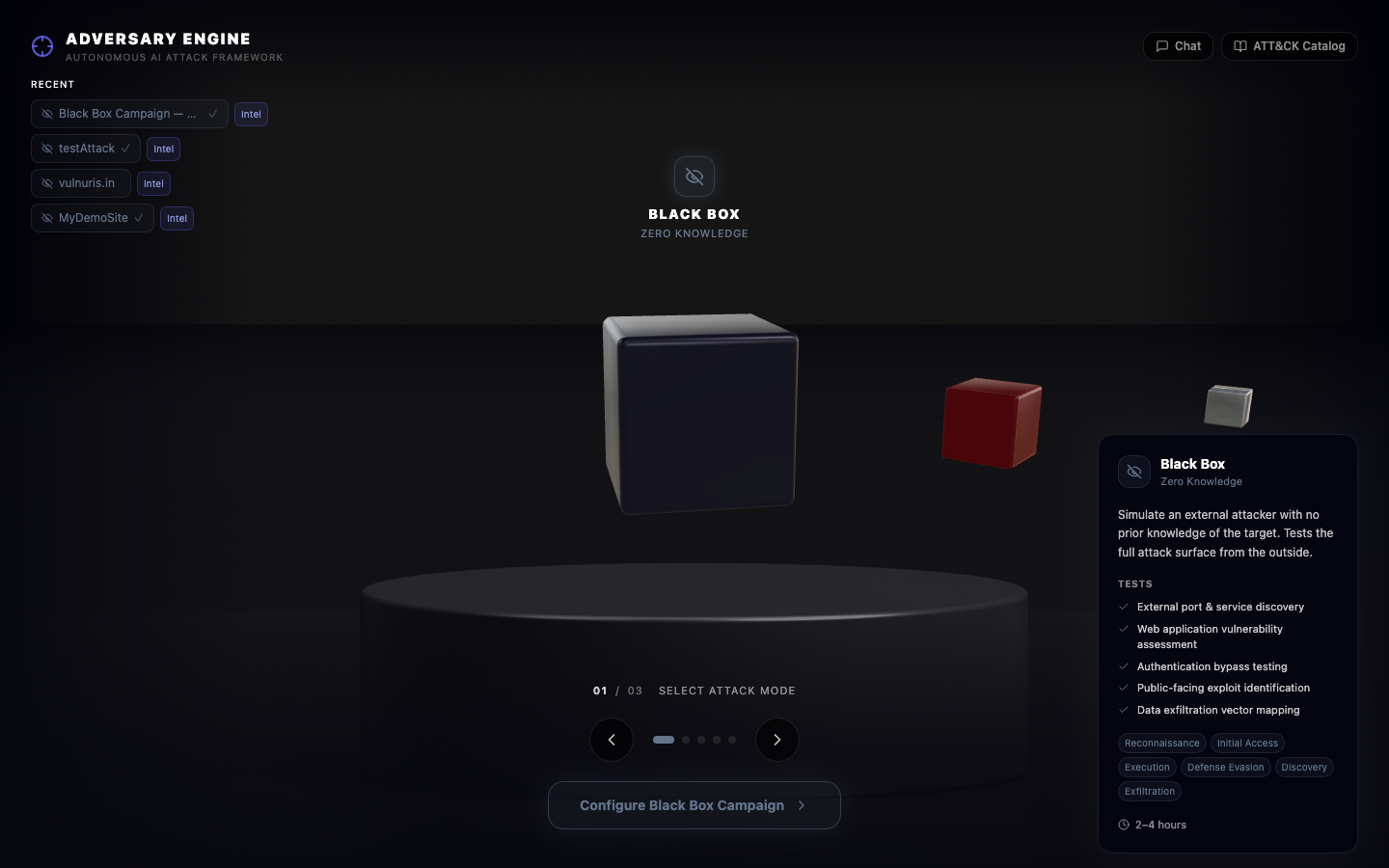
Step 1 — Pick a Box Type
Open the Adversary page and click New Campaign. The first panel presents the five box types as tiles; each tile shows a short description, the tactic categories it unlocks, and whether it requires a paid plan. Picking a tile locks the planner's behavior for this campaign — you can change it later only by starting over.
Grey Box is the default recommendation if you are unsure. See Box Types for the full comparison.
Step 2 — Targets and Geo Options
The second panel collects scope. Add targets one per line: domains, IP addresses, CIDR ranges, cloud account IDs, or repository URLs. The system validates each entry against the tenant's authorized asset inventory and rejects anything out of scope before the campaign can be saved.
Under Origin Strategy you pick where the attacker traffic egresses from. The default is a single native region, but you can opt into distributed origins — multiple regions, multiple exit modes, and a rotation strategy. The live globe preview updates as you add regions. Full details live in Distributed Origins.
Optional fields on this step include a campaign name, a purpose tag (for reporting), and a maximum wall-clock duration. Leaving the duration blank lets the campaign run until the planner reports that it has exhausted productive moves.
Step 3 — Authorization and Launch
The final step is the authorization gate. Clicking Continue opens the Penetration Testing Authorization Agreement modal. This is not optional, and it cannot be pre-filled from a prior run — every campaign requires a fresh, signed consent document with a live liveness capture from the authorizer.
Signed consent and liveness capture are required on every launch. See Authorization.
Once the authorization is countersigned by the platform, the Launch Campaign button activates. Clicking it enqueues the campaign, streams the first phase plan to the execution viewer within seconds, and records the launch event to the audit log with the authorizer's identity attached.